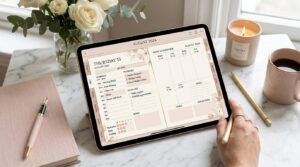
Digital planners have completely revolutionized the way we organize our lives. Whether you’re tracking goals, planning meals, or designing your dream week — the real magic happens when you personalize your planner with tabs, stickers, and hyperlinks.
These small design touches not only make your planner aesthetic and interactive but also boost navigation and productivity — helping you stay focused all year long.
In this post, you’ll learn how to add clickable tabs, aesthetic stickers, and seamless hyperlinks to your digital planner (even if you’re a complete beginner).
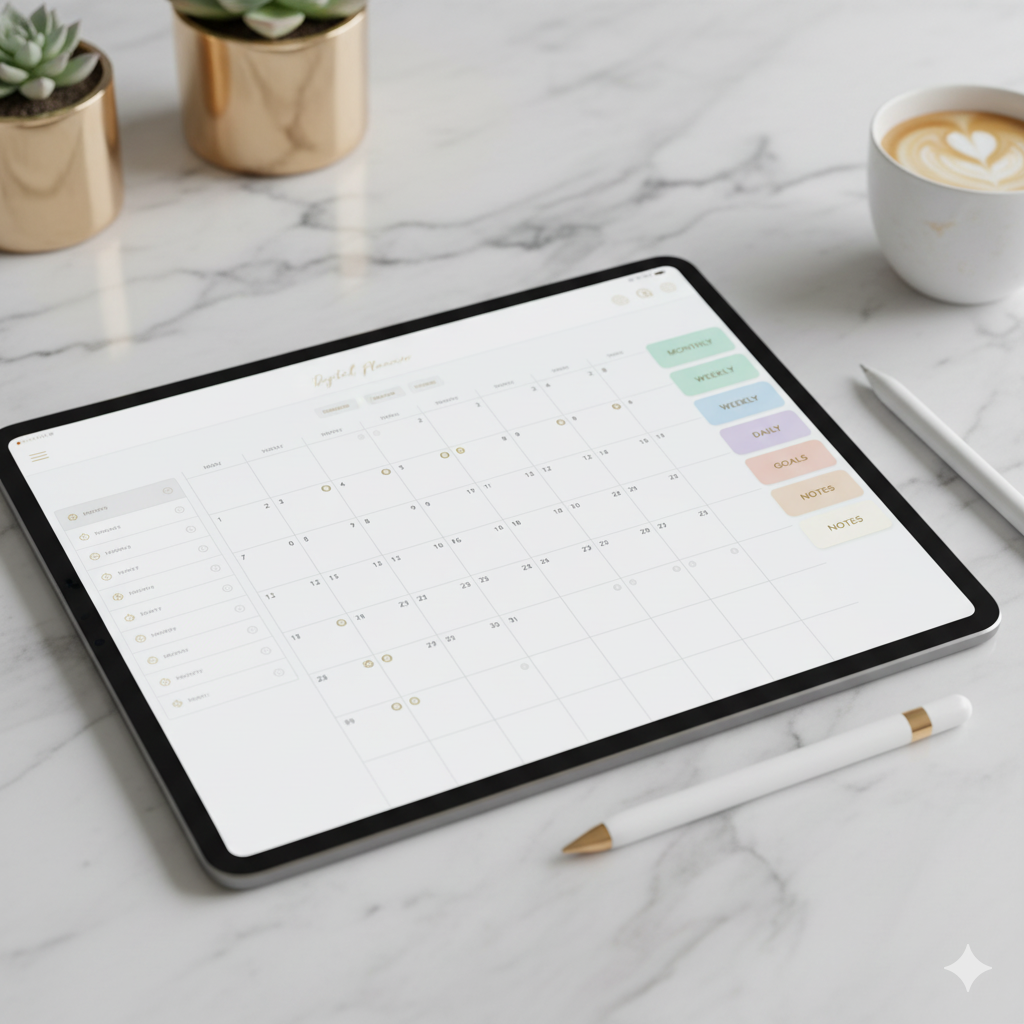
🎨 Why Customizing Your Digital Planner Matters
Personalization is more than pretty — it’s powerful. Here’s why adding interactive elements makes a huge difference:
| Feature | Purpose | Productivity Benefit |
|---|---|---|
| Tabs | Quick navigation between pages | Saves time and keeps planning fluid |
| Stickers | Adds creative and motivational visuals | Makes planning enjoyable and personal |
| Hyperlinks | Clickable shortcuts to pages, sections, or resources | Enhances efficiency and reduces friction |
A plain planner gets boring quickly — but a customized one keeps you inspired to actually use it daily.
💡 Step 1: Prepare Your Digital Planner in Canva or GoodNotes
Start with a clean layout. Whether you’re using Canva, GoodNotes, or Notability, make sure your planner template is editable.
🪄 Pro Tip:
Use Canva templates with layered page layouts — these make hyperlinking and adding graphics much smoother.
🗂 Step 2: Add Clickable Tabs
Tabs make your planner feel like a physical notebook — only better!
Here’s how to add them in Canva:
- Open your planner file in Canva.
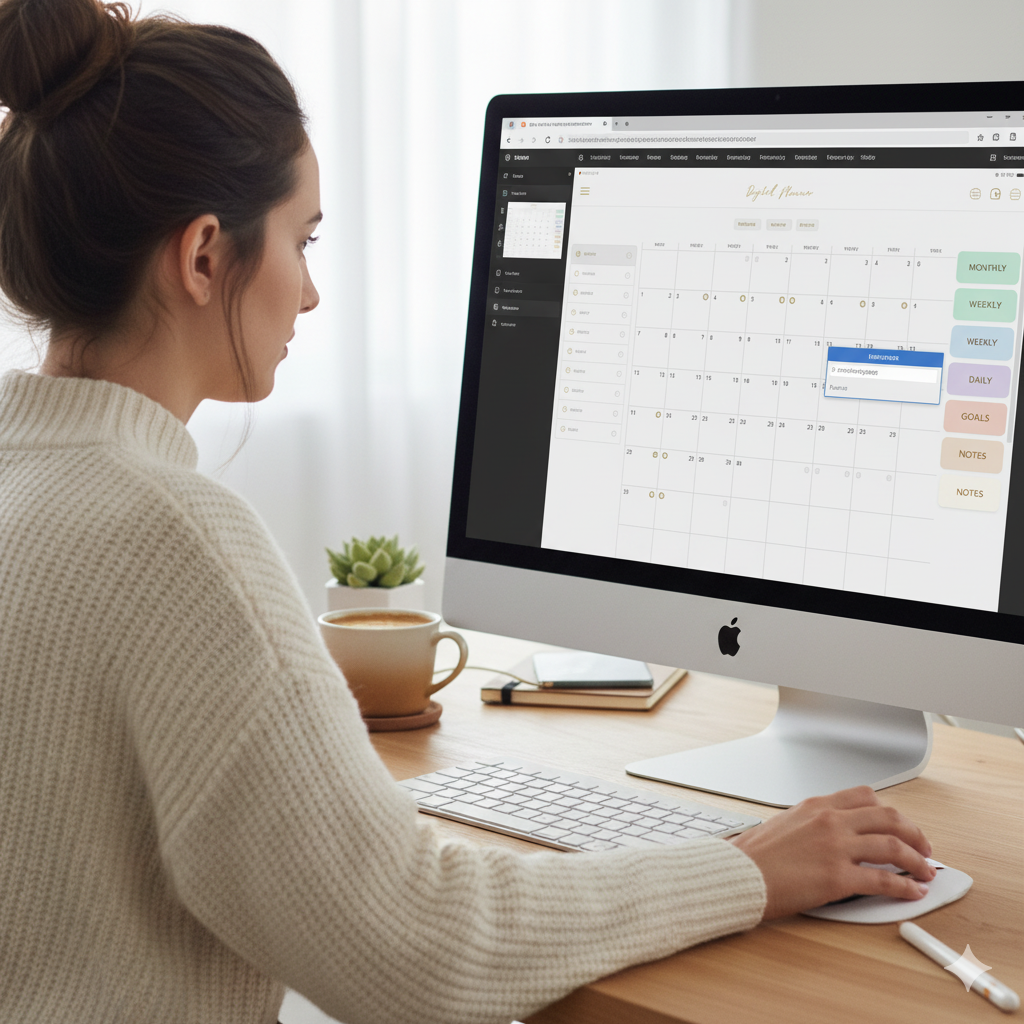
- Create small rectangular shapes (these will be your tabs).
- Label each tab (e.g., “Home,” “Goals,” “Notes,” “Budget”).
- Right-click → “Link” → Choose the page number or section you want the tab to navigate to.
- Copy and paste your tabs across pages for a consistent design.
🧭 Best practice: Use neutral or pastel shades that blend with your theme — they keep your design minimal yet elegant.
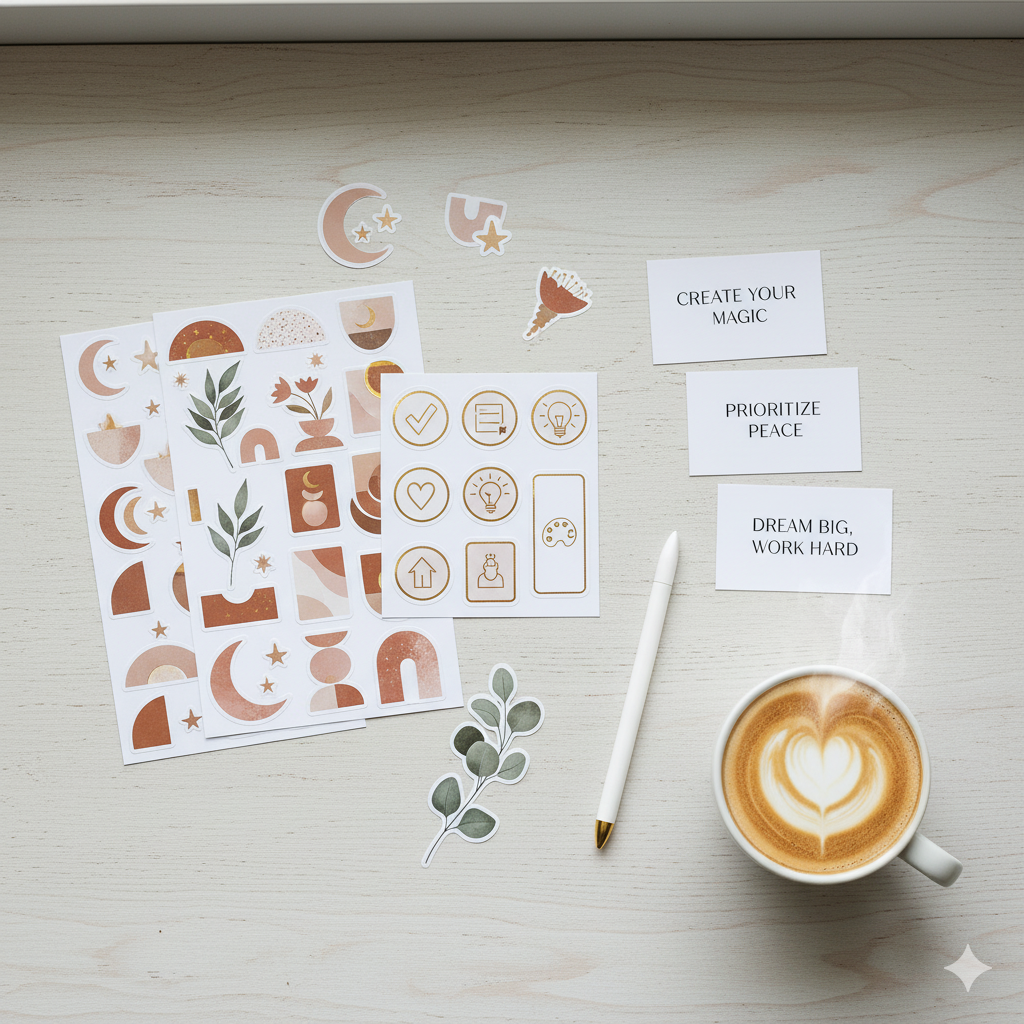
🎀 Step 3: Add Digital Stickers for Aesthetic Appeal
Stickers add personality and emotion to your planning experience.
Where to Find Stickers:
- Canva Elements: Search terms like “digital planner stickers” or “aesthetic icons”.
- Etsy: Download pre-made sticker packs (look for GoodNotes-ready PNGs).
- Create Your Own: Design custom icons or doodles using Canva’s drawing tool.
🧠 Creative Uses for Stickers:
- Motivational quotes
- Habit trackers
- Color-coded markers (for goals, appointments, reminders)
- Mood stickers
💌 Pro Tip: Keep a “sticker sheet” page in your planner to easily copy-paste favorites when needed.
🔗 Step 4: Add Hyperlinks for Smooth Navigation
Hyperlinks transform your static pages into an interactive digital experience.
To Add Hyperlinks in Canva:
- Select any text, image, or icon.
- Click the link icon (🔗).
- Type or paste the target page number or URL.
- Save as PDF (with hyperlinks enabled).
Example:
- “Goals” button → links to page 5
- “Meal Plan” icon → links to Google Sheet
- “Shop Now” →ARTISAN ANTHOLOGY
🧭 Tip for Etsy Sellers: Adding hyperlinks to your product inserts or freebies can direct customers back to your shop — a subtle yet powerful marketing tactic.
🧩 Step 5: Export and Test Your Planner
Once you’ve added your elements:
- Export as PDF with hyperlinks
- Open in GoodNotes or Notability
- Test all links and clickable tabs
- Adjust colors or layouts if anything overlaps
⚙️ Bonus Tip: Save multiple versions (e.g., “planner_v1_editable,” “planner_final_hyperlinked”) to avoid confusion later.
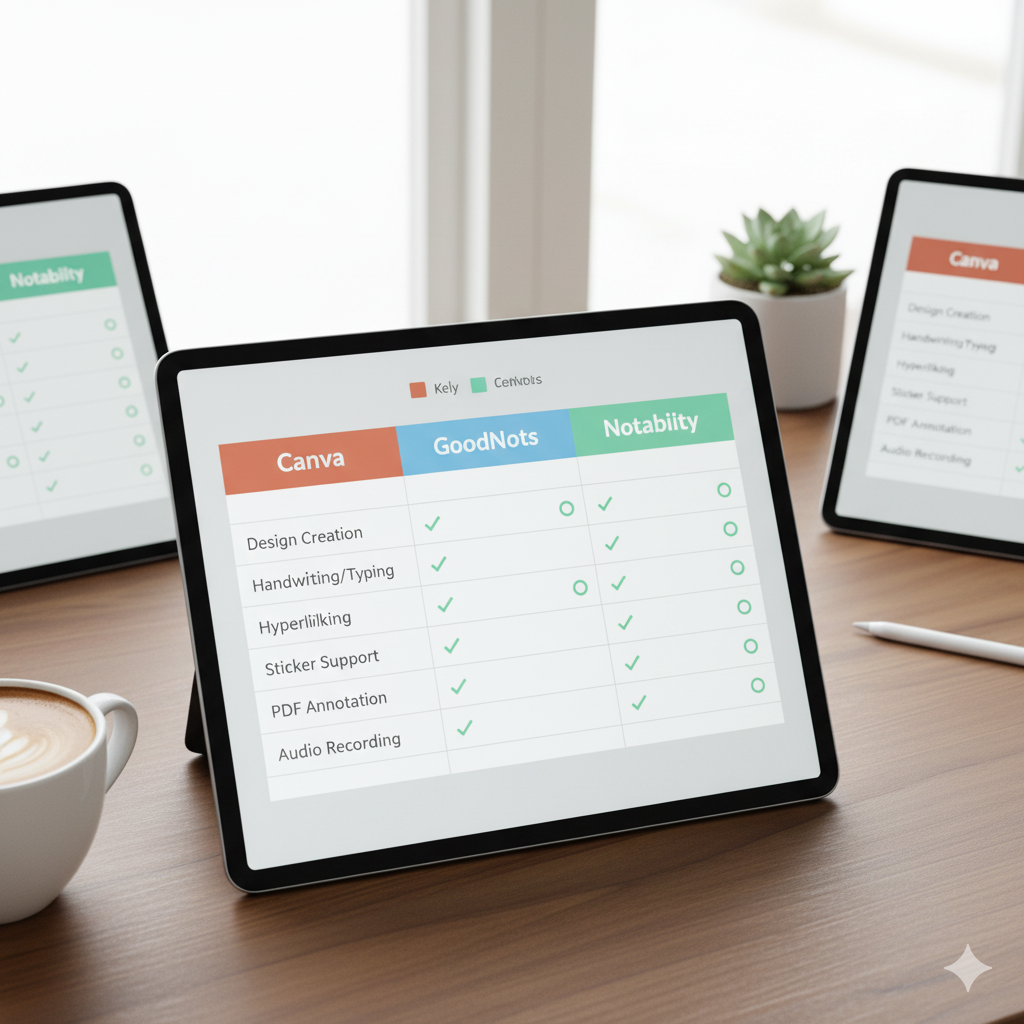
📱 Comparison: Canva vs GoodNotes vs Notability for Adding Tabs and Links
| Feature | Canva | GoodNotes | Notability |
|---|---|---|---|
| Tabs & Stickers | ✅ Easy to design | ✅ Import-friendly | ✅ Import-friendly |
| Hyperlinks | ✅ Built-in link tool | 🚫 Not editable | 🚫 Not editable |
| Customization | 🌟 High flexibility | ⭐ Moderate | ⭐ Moderate |
| Best For | Designers & sellers | Daily users | Students & note-takers |
🧠 Practical Tips to Make Your Planner Stand Out
✅ Use consistent tab colors for easy scanning
✅ Group stickers by theme (self-care, productivity, finance)
✅ Keep hyperlinks short and descriptive
✅ Test every clickable element before selling or sharing
✅ Offer a blank + pre-filled version for your audience
🧷 Common Mistakes to Avoid
❌ Overloading with too many stickers → cluttered look
❌ Forgetting to embed links before exporting
❌ Using mismatched fonts → visual inconsistency
❌ Ignoring testing before publishing
A well-designed planner should feel clean, cohesive, and clickable — not chaotic.
💬 FAQs
Q1: Can I add tabs and hyperlinks to my digital planner in Canva for free?
Yes! Canva’s free version allows hyperlinking and basic design customization. For advanced features, you can upgrade to Canva Pro.
Q2: What’s the best app for clickable planners — GoodNotes or Notability?
GoodNotes is often preferred because it handles hyperlinks smoothly and supports PNG sticker imports better than Notability.
Q3: How do I sell my hyperlinked digital planner online?
You can sell on Etsy, Payhip, or your own website. Just ensure your PDF is properly linked and includes a usage guide for customers.
Q4: Why are my hyperlinks not working after export?
Check that you exported your planner as “PDF for Digital Use (with hyperlinks enabled)” from Canva.
Q5: Can I add stickers directly inside GoodNotes?
Yes — simply import PNG stickers as images or add them from a sticker sheet within your planner.
🏁 Conclusion: Create, Customize, and Conquer
Your digital planner isn’t just a productivity tool — it’s your digital space.
By adding tabs, stickers, and hyperlinks, you’re not just decorating it — you’re creating a system that blends beauty with functionality.
Whether you’re a student, creator, or entrepreneur, a beautifully linked and designed planner helps you plan smarter — not harder.
💎 Ready to create your own?
Start with a fully editable Canva Digital Planner Template from Artisan Anthology — customize it, add your tabs, and watch your productivity transform.
✨ About Artisan Anthology
At Artisan Anthology, we curate timeless digital creations designed to inspire and elevate every part of your lifestyle. Our collection includes brand books, digital templates, recipes, ebooks, wardrobe planners, fashion guides, printable wall art, and elegant home décor designs. We also specialize in wedding cards, invitations, baby shower cards, and engagement cards, each crafted to celebrate life’s most meaningful moments.
For professionals and dreamers alike, our CV templates, guided journals, and manifestation planners are created with intention to help you tell your story beautifully and authentically.
✨ Discover our full collection of digital planners here → ArtisanAnthology.xyz