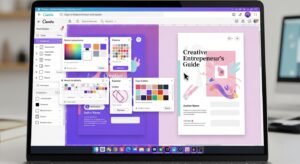
Digital planners have become the new productivity essential for iPad and tablet users. They’re sleek, paperless, and eco-friendly — yet many beginners unknowingly sabotage their workflow by making simple mistakes that slow them down or make digital planning feel “hard.”
If you’ve ever wondered, “Why doesn’t my digital planner feel organized?” — this post is for you.
We’ll explore the 10 most common mistakes beginners make (and how to fix them fast) — with practical tips, a comparison table, and expert recommendations to help you master your planner in no time.
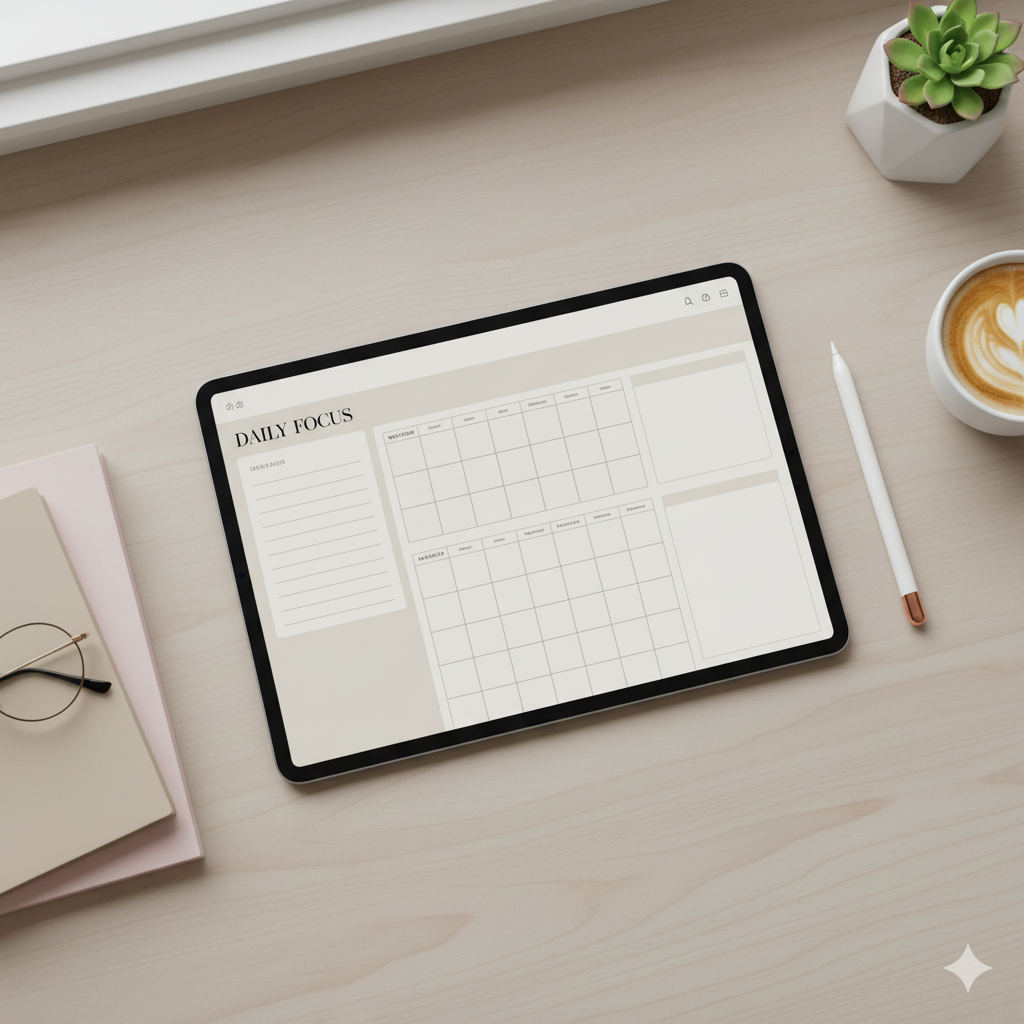
💻 1. Not Choosing the Right Digital Planner App
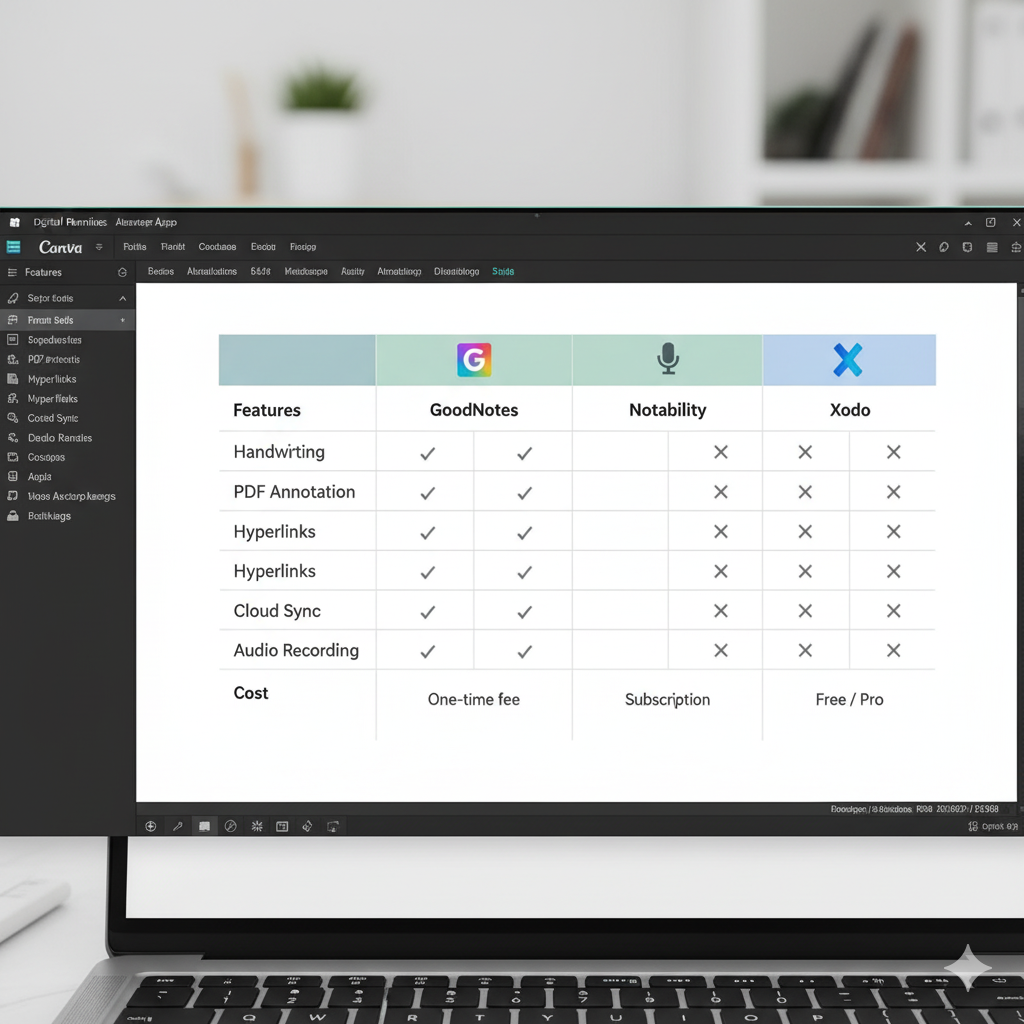
One of the first mistakes is downloading a planner without considering which app it’s designed for.
Digital planners come in formats for GoodNotes, Notability, Xodo, or Noteshelf, and using the wrong app often breaks hyperlinks or formatting.
✅ Fix It:
- Always check if the planner is compatible with your app (most use GoodNotes or Notability).
- Use PDF planners with hyperlinks for the smoothest navigation.
- Test the links and pen responsiveness before transferring all your notes.
🎨 2. Ignoring Planner Customization
Many new users stick to the default design — but your digital planner should reflect your personality and workflow.
Customizing color palettes, tabs, fonts, and stickers can make planning visually motivating and easier to navigate.
✅ Fix It:
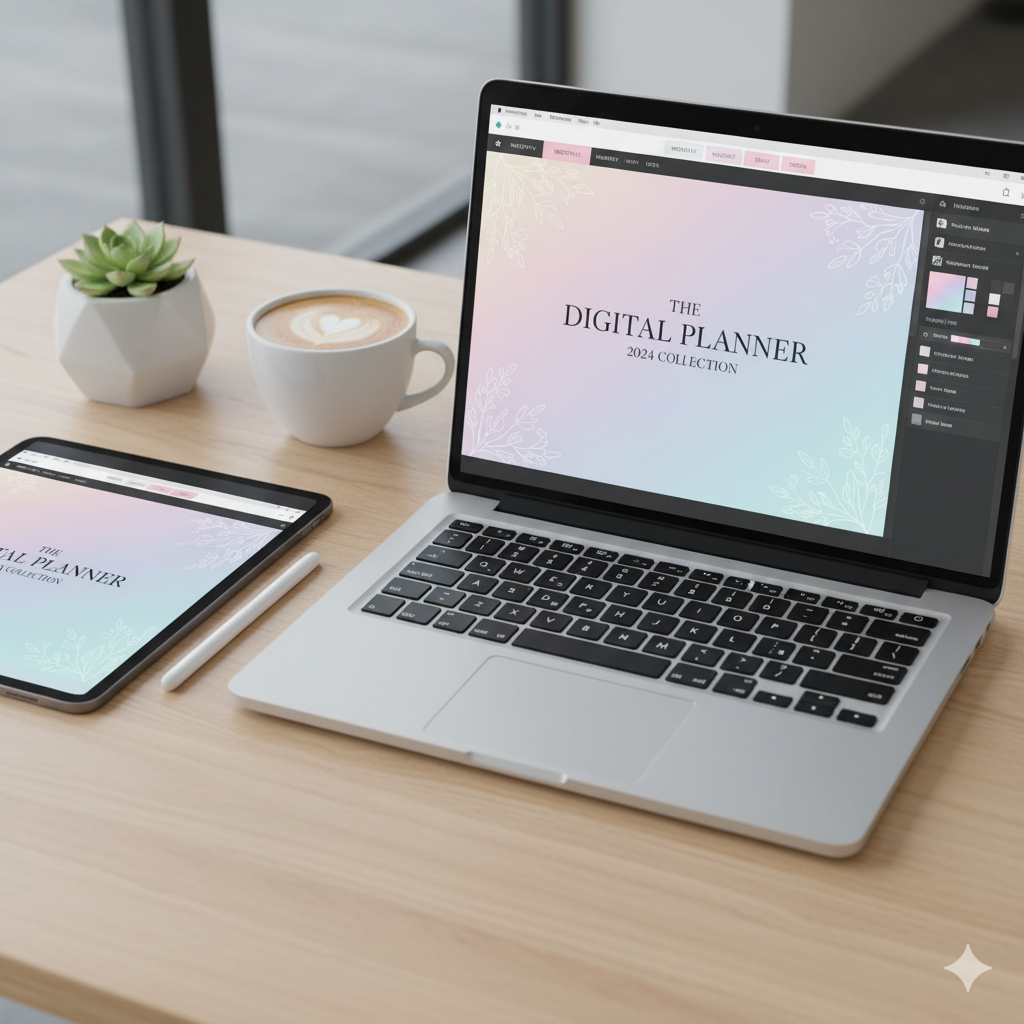
- Use Canva or Procreate to customize your covers and tabs.
- Try minimalist, neutral themes if you want focus — or pastel palettes for creativity.
⚡ 3. Not Backing Up the Planner File
Forgetting to back up your planner can lead to data loss if your app crashes or your device resets.
✅ Fix It:
- Sync your planner files to iCloud, Google Drive, or Dropbox.
- Schedule weekly automatic backups so you never lose your work.
🧭 4. Overloading with Too Many Stickers
Aesthetic stickers are fun — until they make your planner lag or freeze. Many beginners overload their planner with large PNGs, slowing down their tablet performance.
✅ Fix It:
- Compress stickers before importing.
- Use pre-linked sticker pages instead of hundreds of separate files.
📅 5. Skipping Hyperlink Navigation
Hyperlinks are the secret to fast navigation, yet many beginners scroll manually through hundreds of pages.
✅ Fix It:
- Tap on the tabs or icons for instant jumps between months, goals, or trackers.
- Learn the hyperlink layout — it’s your planner’s GPS!
🧩 6. Using the Wrong Pen or Highlighter Tool
Choosing the wrong pen thickness or opacity makes notes messy and hard to read.
✅ Fix It:
- Stick to 0.4–0.6mm pens for digital handwriting.
- Use consistent color codes (e.g., blue for tasks, pink for personal).
💡 7. Not Syncing Across Devices
Many users forget to sync their planner between iPad, phone, and laptop — leading to outdated notes.
✅ Fix It:
- Enable automatic sync through your app’s settings.
- Use the same cloud account on all devices.
🕰️ 8. Overcomplicating the Layout
Too many pages or trackers can cause overwhelm. Beginners often think “more is better,” but simplicity drives consistency.
✅ Fix It:
- Start with 3 key sections: Daily, Weekly, Goals.
- Add more as your routine stabilizes.
📊 9. Ignoring Analytics or Habit Trackers
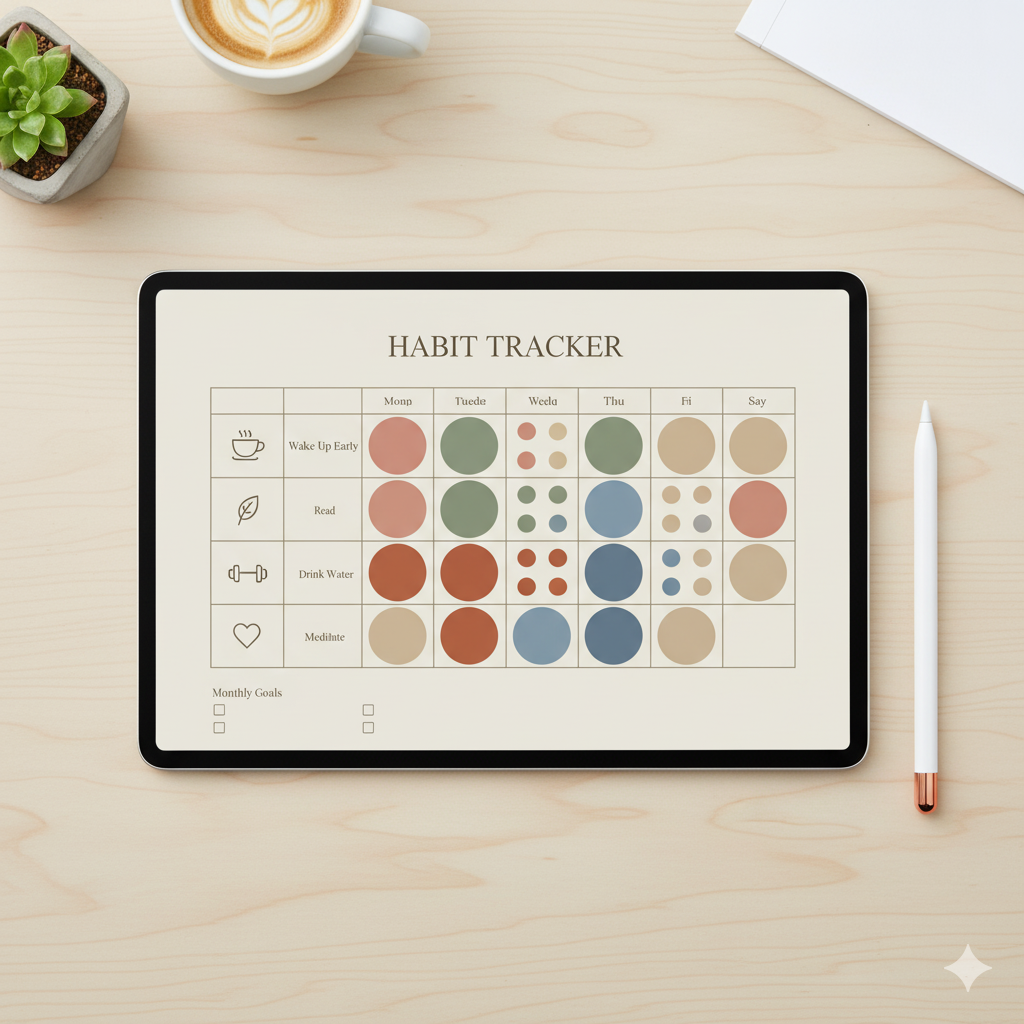
Digital planners often include trackers and dashboards, but beginners leave them blank. These pages help you measure your progress — the key to productivity.
✅ Fix It:
- Fill out trackers weekly.
- Use color-coding to visualize habits and wins.
🌙 10. Forgetting to Make It a Ritual
The biggest mistake? Treating your planner as a chore instead of a ritual.
✅ Fix It:
- Plan in a cozy, intentional setup — coffee, music, candles.
- Make planning a rewarding moment, not a task.
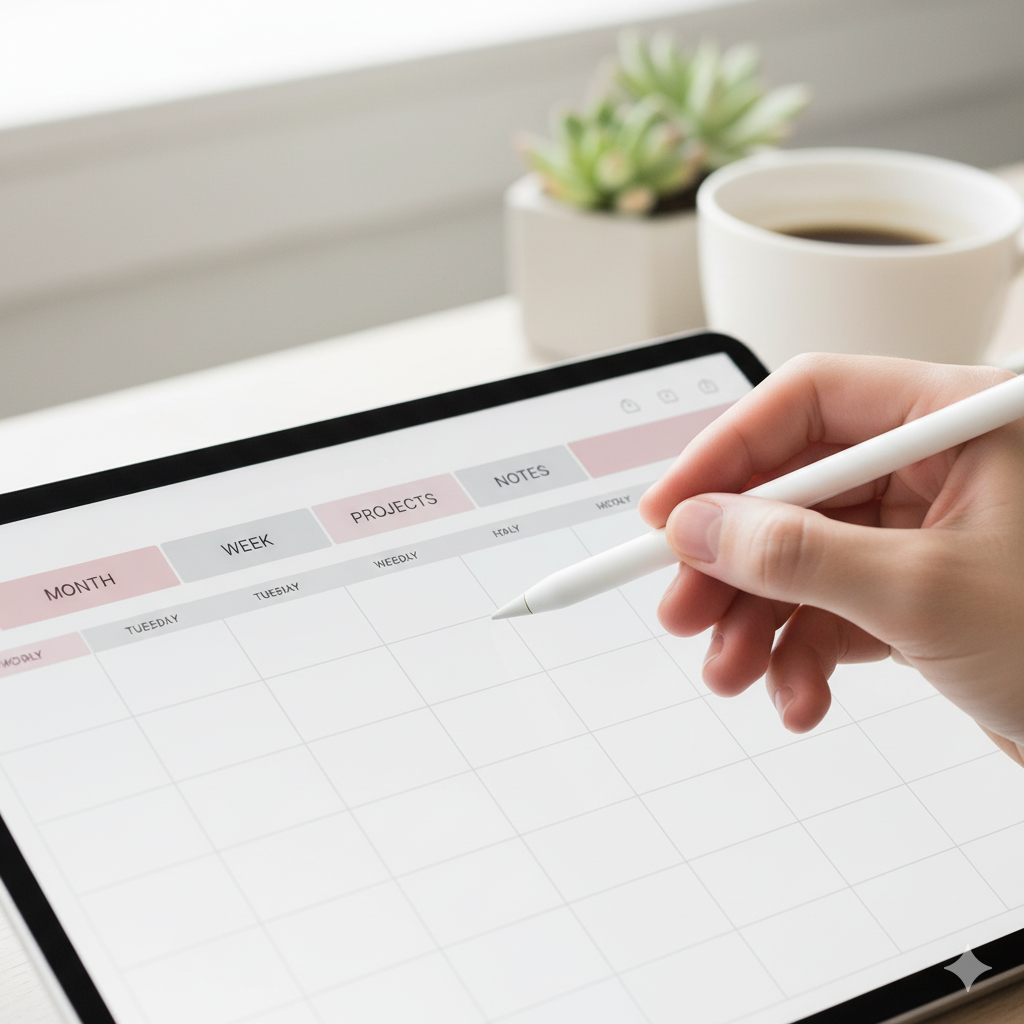
📘 Comparison Table: Paper Planner vs Digital Planner for Beginners
| Feature | Paper Planner | Digital Planner |
|---|---|---|
| Customization | Limited | Unlimited |
| Eco-Friendly | ❌ Uses paper | ✅ 100% paperless |
| Portability | One physical copy | Syncs across devices |
| Hyperlinks & Navigation | ❌ Manual flipping | ✅ One-tap access |
| Aesthetic Control | Fixed | Canva editable |
| Backup & Security | Lost if misplaced | Cloud storage backup |
💬 FAQs
❓What is the biggest mistake digital planner beginners make?
Most beginners use incompatible apps or ignore hyperlinks, which causes frustration. Always check app compatibility before downloading.
❓Are digital planners worth it for beginners?
Yes! They simplify organization, save paper, and sync across devices — perfect for students, entrepreneurs, and creatives.
❓Can I create my own digital planner in Canva?
Absolutely. Canva lets you design your own aesthetic planner with clickable tabs and export it as a PDF for GoodNotes or Notability.
❓How do I avoid lag in my planner?
Avoid large sticker files and unnecessary pages. Compress images and keep layouts simple.
🌟 Conclusion: Master Your Digital Planner with Confidence
Using a digital planner isn’t just about going paperless — it’s about redefining your productivity and creativity.
Avoid these 10 common mistakes, personalize your layout, and make your planner a daily habit. Whether you’re an Etsy seller, student, or entrepreneur — mastering digital planning can transform your workflow forever.
💬 Ready to design your dream planner?
👉 Start with a Canva editable digital planner template — elegant, organized, and optimized for iPad users.
About Artisan Anthology
At Artisan Anthology, we curate timeless digital creations designed to inspire and elevate every part of your lifestyle. Our collection includes brand books, digital templates, recipes, ebooks, wardrobe planners, fashion guides, printable wall art, and elegant home décor designs. We also specialize in wedding cards, invitations, baby shower cards, and engagement cards, each crafted to celebrate life’s most meaningful moments.
For professionals and dreamers alike, our CV templates, guided journals, and manifestation planners are created with intention to help you tell your story beautifully and authentically.
✨ Discover our full collection of digital planners here → artisananthology.xyz