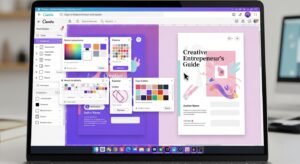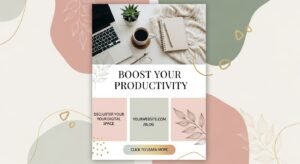
In 2025, digital planners are more than just productivity tools — they’re lifestyle statements. Whether you’re an entrepreneur, student, or digital creator, knowing how to design a digital planner in Canva can open endless opportunities for creativity and income.
Canva has made it incredibly easy to design digital products without professional design software. With the right approach, you can create stunning, clickable, hyperlinked planners that look like they were made by a luxury brand.
This step-by-step guide will show you how to design a digital planner in Canva like a pro — from concept and layout to export and marketing.
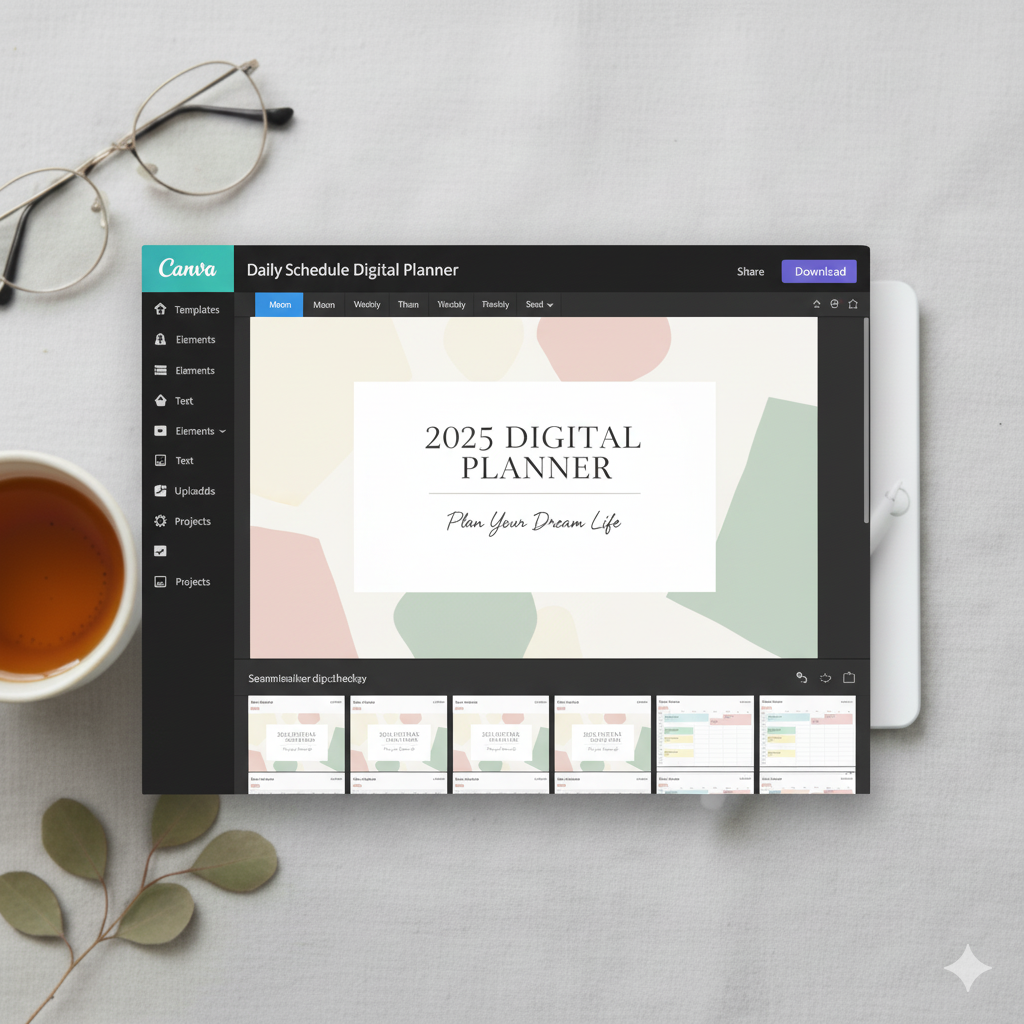
🎯 Why Canva is the Best Tool for Designing Digital Planners
Canva is not just beginner-friendly — it’s also feature-rich for advanced creators.
Here’s why it’s the top choice for 2025 digital planner designers:
| Feature | Benefit | Pro Tip |
|---|---|---|
| Drag-and-drop design | No need for design skills | Use Canva’s grid system for perfect alignment |
| Custom page sizes | Create planner layouts for iPad, tablet, or GoodNotes | Standard planner size: 11 x 8.5 inches (landscape) |
| Hyperlink support | Add clickable tabs for easy navigation | Use transparent boxes over buttons |
| Brand Kit tools | Maintain consistent branding | Save color palettes + fonts for quick reuse |
| Huge template library | Speeds up creation | Customize existing templates with your brand twist |
🪄 Step-by-Step: How to Design a Digital Planner in Canva Like a Pro
Step 1: Define Your Planner Purpose and Audience
Ask yourself:
- Who will use your planner? (students, business owners, moms?)
- What’s their biggest pain point? (organization, time, mindset?)
🎯 Example Niches:
- Minimalist daily planners
- Manifestation and goal planners
- “That Girl” aesthetic planners
- Business productivity planners
💡 Pro Tip: Research on Etsy to see which planners are trending — then create something visually unique.
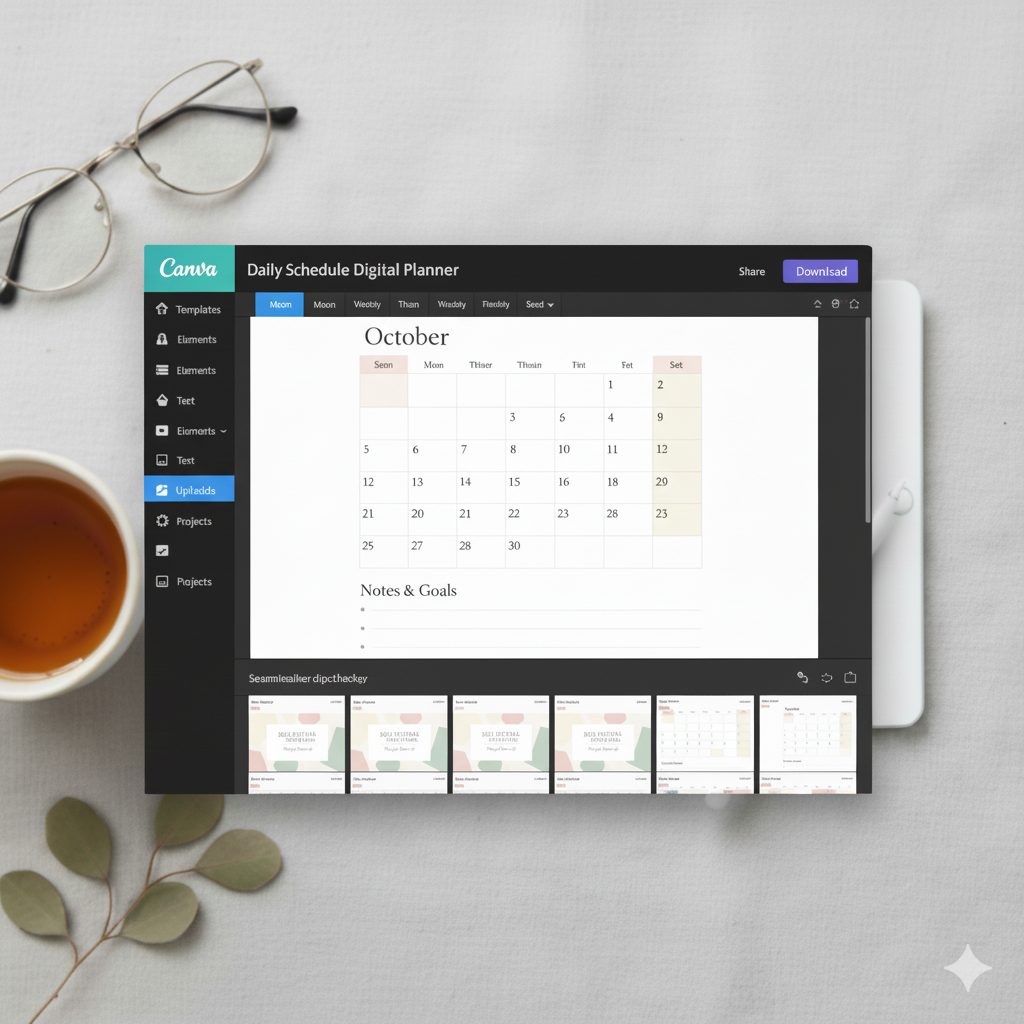
Step 2: Choose Your Digital Planner Size
The most popular planner dimensions for Canva are:
- A4 (8.3 x 11.7 inches) – perfect for printing or PDF downloads
- Landscape (11 x 8.5 inches) – best for iPad + tablet users
👉 Set your dimensions in Canva:
File → Create a Design → Custom Size → Enter Dimensions
Step 3: Design the Cover Page
Your cover sets the tone — it should instantly attract attention.
Design Tips:
- Use textured or gradient backgrounds for depth.
- Add your planner name + year (e.g., “The Glow-Up Planner 2025”).
- Include your logo or brand name in small, elegant text.
Step 4: Plan Your Sections and Page Layouts
Create a structure before designing.
Common planner sections include:
- Monthly & Weekly Overview
- Daily To-Do Pages
- Goal Setting Sheets
- Habit & Mood Trackers
- Finance or Budget Pages
💡 Pro Tip: Keep a consistent visual hierarchy — bold headers, medium subheaders, and legible body text.
Step 5: Add Hyperlinks for Easy Navigation
Digital planners shine when they’re interactive.
To add hyperlinks in Canva:
- Select the text or shape.
- Click the link icon 🔗.
- Paste the page link (or slide number).
✅ Use consistent tab colors for each section (e.g., pink for daily, beige for monthly).
Step 6: Choose Fonts and Colors Like a Designer
For a cohesive, modern look:
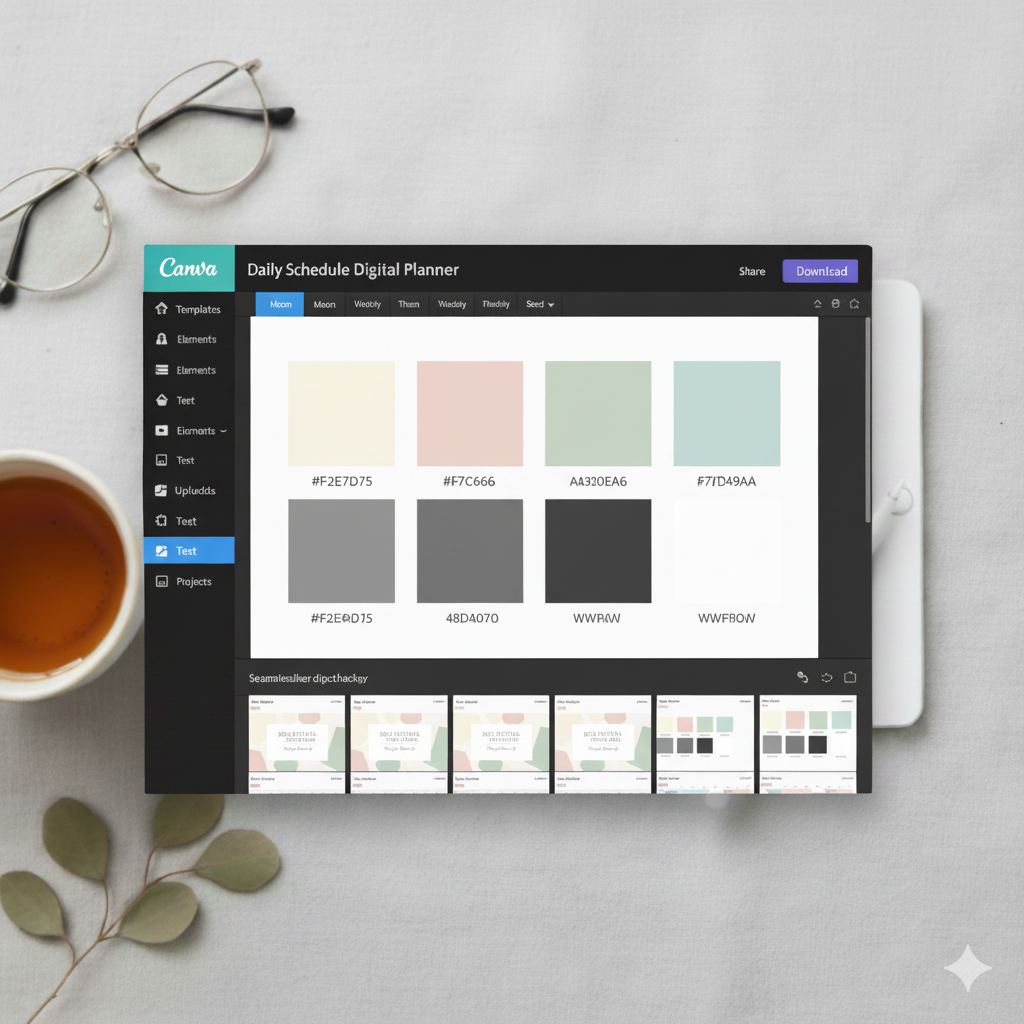
- Fonts: Use a mix of serif + sans-serif (e.g., Playfair Display + Lato).
- Colors: Stick to 2–3 primary tones for balance.
- Spacing: Give your pages breathing room — minimalism sells.
Step 7: Add Interactive Elements and Stickers
Enhance usability with:
- Icons for quick visual cues
- Digital stickers (PNG elements with transparent backgrounds)
- Button tabs for each section
These elevate the user experience and make your planner feel premium.
Step 8: Export Your Planner as a PDF
Before exporting:
- Check all hyperlinks
- Preview in presentation mode
- Ensure all pages are aligned
Export Settings:
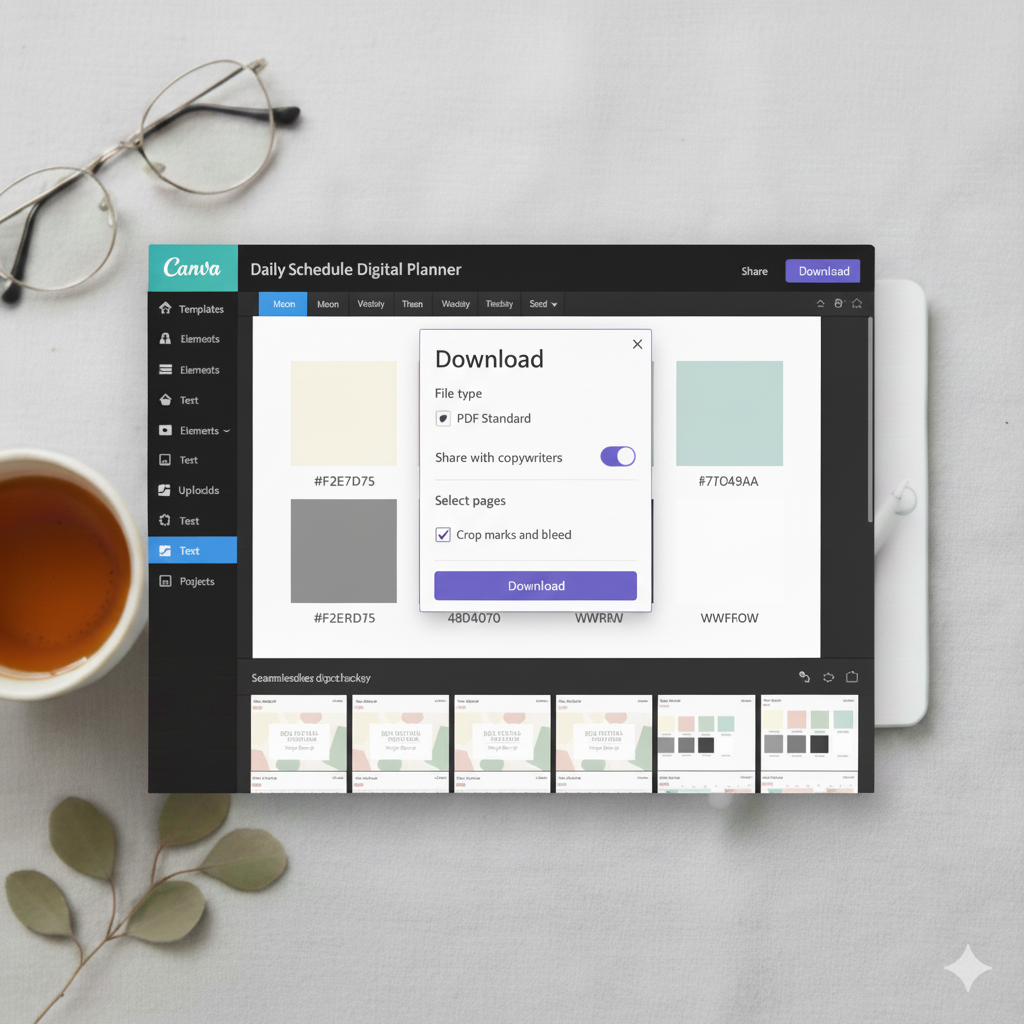
- File → Download → PDF Standard (for digital)
- Tick “Flatten PDF” for GoodNotes compatibility
Step 9: Test Your Digital Planner
Upload your planner to:
- GoodNotes
- Notability
- Noteshelf
Ensure all links, tabs, and stickers work seamlessly.
💡 Pro Tip: Create a short demo video to showcase how it works on tablets — perfect for Etsy or Pinterest marketing.
💎 Comparison Table: Canva vs Other Tools
| Platform | Ease of Use | Design Control | Best For | Price |
|---|---|---|---|---|
| Canva | ⭐⭐⭐⭐⭐ | High | Beginners & Etsy sellers | Free / Pro $12.99/mo |
| Procreate | ⭐⭐⭐ | High | Artistic planners | $9.99 (one-time) |
| Affinity Publisher | ⭐⭐⭐⭐ | Advanced | Professional designers | $69.99 (one-time) |
| Adobe InDesign | ⭐⭐⭐⭐ | Expert level | Agencies, large brands | $20.99/mo |
💬 Friendly FAQs
1. Can you make a digital planner in Canva for free?
Yes! Canva’s free version offers everything you need to create and export a digital planner. You’ll only need Canva Pro for premium elements or fonts.
2. What is the best size for a digital planner in Canva?
The 11×8.5 inch landscape layout is perfect for iPad users and GoodNotes compatibility.
3. How do I sell my Canva digital planner online?
You can sell it on Etsy, Payhip, or Gumroad as a downloadable PDF file. Include mockups and a demo video for higher conversions.
4. Can I make hyperlinked tabs in Canva?
Yes — simply use transparent shapes linked to other pages in your design. Test all links before exporting.
5. What makes a digital planner “professional”?
Clean design, easy navigation, balanced typography, and strong branding all contribute to a high-end, professional look.
🪞 Conclusion: Design, Create, and Sell Like a Pro
Designing a digital planner in Canva is one of the most rewarding creative projects you can take on in 2025. Whether your goal is personal productivity or passive income through Etsy, Canva gives you every tool to bring your ideas to life beautifully.
✅ Start today — define your niche, design your planner, and showcase it proudly on Pinterest, Etsy, or your own website.
Your planner could be the next viral hit that inspires thousands to organize their lives.
✨ About Artisan Anthology
At Artisan Anthology, we curate timeless digital creations designed to inspire and elevate every part of your lifestyle. Our collection includes brand books, digital templates, recipes, ebooks, wardrobe planners, fashion guides, printable wall art, and elegant home décor designs. We also specialize in wedding cards, invitations, baby shower cards, and engagement cards, each crafted to celebrate life’s most meaningful moments.
For professionals and dreamers alike, our CV templates, guided journals, and manifestation planners are created with intention to help you tell your story beautifully and authentically.
✨ Discover our full collection of digital planners here → ArtisanAnthology.xyz