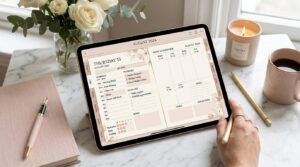
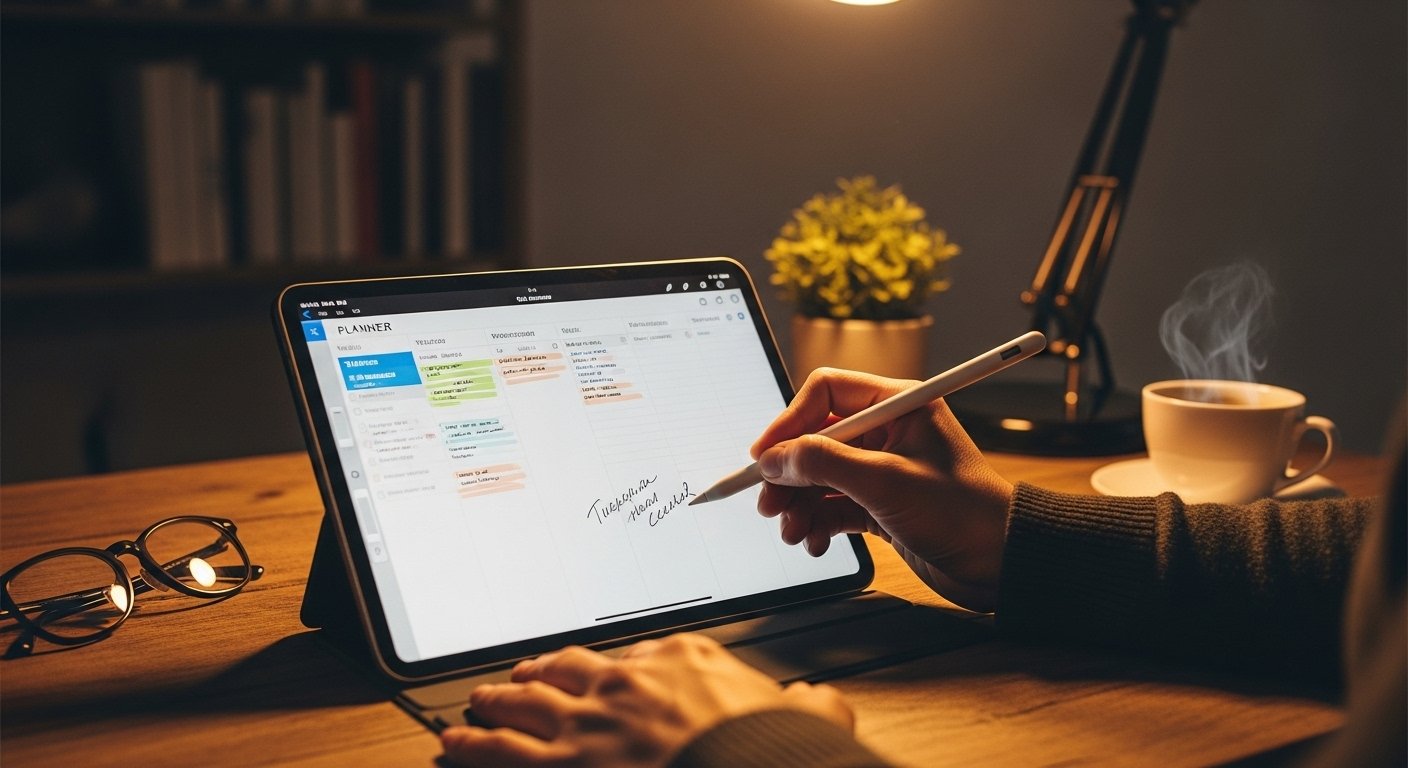
Writing with an Apple Pencil inside a digital planner is one of the biggest reasons people switch from paper to digital planning. When done correctly, it feels natural, smooth, and flexible—just like handwriting on paper, but smarter.
However, many beginners struggle with issues like messy handwriting, lag, zoom problems, or not knowing which settings to use. If you’ve ever wondered “Why doesn’t my Apple Pencil feel right in my planner?”, this guide is for you.
In this in-depth article, you’ll learn exactly how to write with Apple Pencil in a digital planner, step by step—from setup and app settings to handwriting tips, productivity workflows, and common mistakes to avoid.

Why Writing With Apple Pencil Is Perfect for Digital Planning
Apple Pencil bridges the gap between handwritten planning and digital efficiency.
Key Benefits of Using Apple Pencil in a Planner
- Natural handwriting feel
- Easy erasing and undo
- No messy cross-outs
- Reusable pages
- Searchable handwritten text (in supported apps)
When paired with the right planner and settings, Apple Pencil becomes a powerful productivity tool—not just a stylus.
What You Need to Write With Apple Pencil in a Digital Planner
Before diving in, make sure your setup is optimized.
Essential Requirements
- iPad (Apple Pencil–compatible model)
- Apple Pencil (1st or 2nd generation)
- Digital planner (PDF or app-based)
- Note-taking app (GoodNotes, Notability, Noteshelf, etc.)
💡 Tip: PDF digital planners work best for handwriting and page duplication.
Best Apps for Writing With Apple Pencil in a Planner
Not all apps handle handwriting equally.
Apple Pencil Planner App Comparison
| App | Best For | Handwriting Feel | Planner Features |
|---|---|---|---|
| GoodNotes | Most users | Very smooth | Tabs, duplication, search |
| Notability | Audio + notes | Fluid & responsive | Recording, quick writing |
| Noteshelf | Minimal planners | Paper-like feel | Custom pens |
| Apple Notes | Simple planning | Decent | Limited planner structure |
👉 Best overall: GoodNotes for digital planners with Apple Pencil.
Step 1: Set Up Apple Pencil Correctly
Before writing, calibrate your experience.
Apple Pencil Setup Tips
- Fully charge your Apple Pencil
- Turn off low-power mode on iPad
- Disable accidental palm touches (palm rejection on)
- Use a matte screen protector for paper-like feel
These small changes dramatically improve handwriting quality.
Step 2: Choose the Right Pen Settings
Pen settings make or break your writing experience.
Recommended Pen Settings (GoodNotes Example)
- Pen type: Fountain pen or ball pen
- Thickness: 0.4–0.6 mm
- Pressure sensitivity: On
- Stabilization: Medium
Avoid pens that are too thick—they reduce precision and ruin aesthetics.

Step 3: Zoom In to Improve Handwriting
One of the most underrated digital planning tricks is zoom writing.
Why Zoom Writing Works
- Improves letter spacing
- Reduces hand strain
- Makes handwriting cleaner
- Feels closer to paper
Most apps allow you to zoom while writing without disrupting layout.
Step 4: Use Consistent Writing Style
Consistency matters more than perfect handwriting.
Tips for Clean Planner Writing
- Stick to one handwriting style
- Use print or cursive—not both
- Write slightly larger than paper
- Maintain even spacing
Your handwriting will naturally improve with regular use.
Step 5: Organize Writing With Color Coding
Color boosts clarity—but only when used intentionally.
Functional Color Coding Ideas
- Black or dark gray for main writing
- One accent color for priorities
- One color for appointments
Avoid rainbow writing—it reduces readability and focus.
Step 6: Use Erase, Undo, and Lasso Tools Wisely
Digital planning shines when you embrace flexibility.
Productivity Tools to Master
- Undo: Fix mistakes instantly
- Eraser: Clean without mess
- Lasso tool: Move, resize, or duplicate handwriting
These tools remove fear of “ruining” a page—something paper planners can’t do.
Step 7: Write First, Decorate Later
A common beginner mistake is decorating before writing.
Better Planner Flow
- Write tasks and plans
- Adjust spacing
- Add minimal decoration
This keeps planning functional while still aesthetic.
Apple Pencil Writing vs Typing in a Digital Planner
Which is better? It depends on your goals.
| Feature | Apple Pencil Writing | Typing |
|---|---|---|
| Memory retention | High | Moderate |
| Creativity | High | Low |
| Speed | Medium | High |
| Personal feel | Strong | Minimal |
| Planner aesthetics | Custom | Uniform |
👉 Best approach: Handwrite daily planning, type long notes.
Common Apple Pencil Writing Problems (And Fixes)
Problem: Handwriting looks messy
Fix: Zoom in + reduce pen thickness
Problem: Lag or delay
Fix: Close background apps + disable low power mode
Problem: Palm touches cause marks
Fix: Enable palm rejection + use proper grips

FAQs
How do I write neatly with Apple Pencil in a planner?
Use zoom writing, thinner pen settings, and consistent spacing.
Which app is best for writing with Apple Pencil?
GoodNotes is the most popular for smooth handwriting and planner navigation.
Does Apple Pencil improve productivity?
Yes—handwriting improves focus, memory, and engagement with planning.
Can beginners use Apple Pencil for digital planning?
Absolutely. Most beginners adapt within a few days of regular use.
Is Apple Pencil better than typing for planning?
For daily planning and habit tracking, handwriting with Apple Pencil is more effective.
Final Thoughts: Apple Pencil Turns Planning Into a Habit
Writing with Apple Pencil isn’t just a feature—it’s a planning experience.
When your planner:
- Feels natural to write in
- Is easy to correct
- Adapts to your life
…you’re far more likely to use it consistently.
Your Next Step
Start simple:
- Choose one pen
- Use zoom writing
- Write daily for 5 minutes
That’s how digital planning becomes second nature.
✨ About Artisan Anthology
At Artisan Anthology, we curate timeless digital creations designed to inspire and elevate every part of your lifestyle. Our collection includes brand books, digital templates, recipes, ebooks, wardrobe planners, fashion guides, printable wall art, and elegant home décor designs. We also specialize in wedding cards, invitations, baby shower cards, and engagement cards, each crafted to celebrate life’s most meaningful moments.
For professionals and dreamers alike, our CV templates, guided journals, and manifestation planners are created with intention to help you tell your story beautifully and authentically.
✨ Discover our full collection of digital planners here → ArtisanAnthology.xyz